Every release, what actually changed — and how to use it. Written for the students learning on their phones and the teachers building the courses they open.
2.5.0
October 2026
In review at the App Store and Google Play
·
iOS
Android
Grammar that makes you choose.
Sessions that notice how you're doing.
In a conditional or a tense contrast, the hard part is deciding which form goes in which clause — and until now the second verb sat there printed in full, quietly giving the first one away. 2.5 asks for both. A verb lesson can now carry a conjugation table you drill rather than just read, and grammar typing happens where it belongs, inside the sentence. Around that, a session finally reacts: to a run of right answers, to the word you missed and then got, to a flawless first half — and, above 80 %, with confetti.
Add a conjugation table to a grammar set in the web studio — pick the tense and the forms fill in, irregulars flagged
Your students drill the table first, then put the verb into sentences — in one session
The curated conditional and tense-contrast lessons now test the decision they're named after
New · Two gaps
Both verbs are yours to choose.
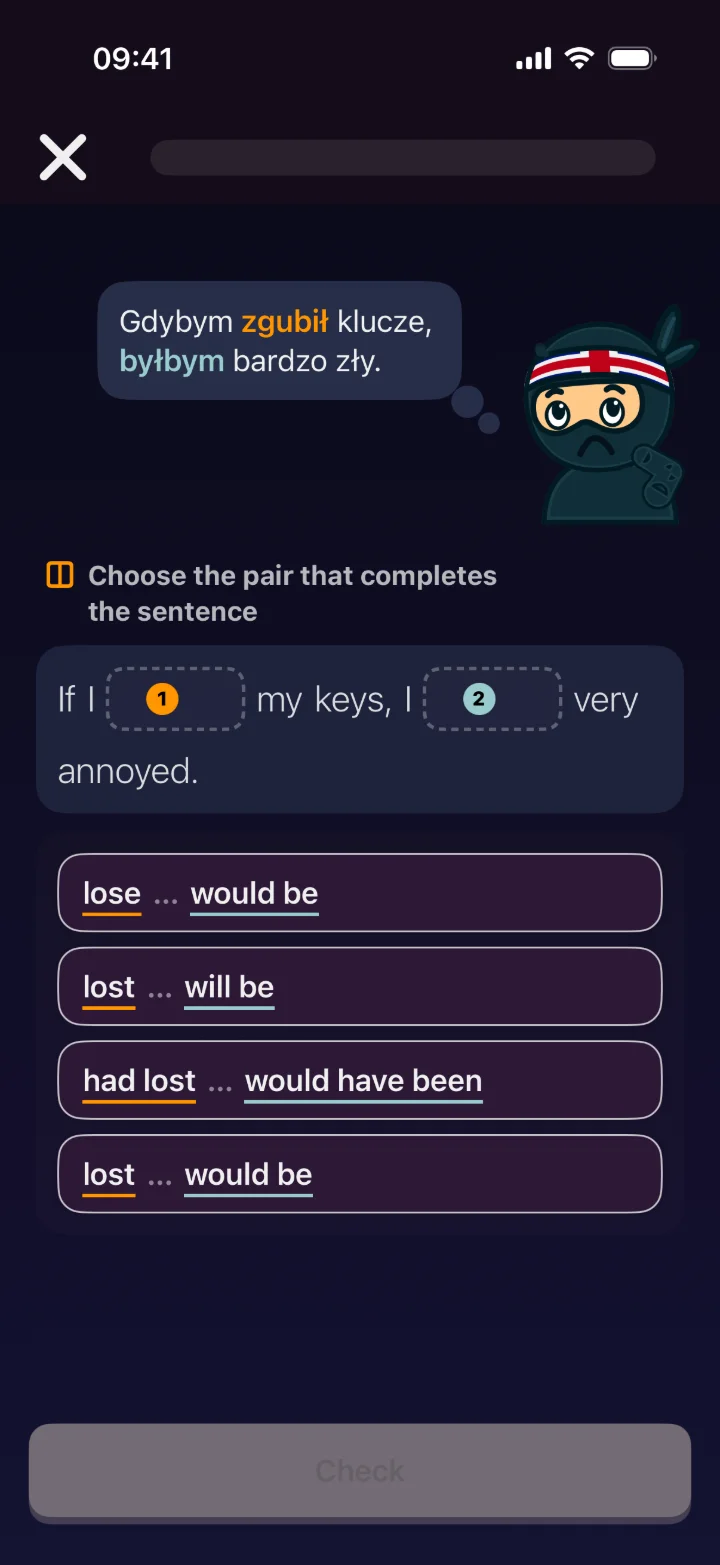
“If I ___ my keys, I would be very annoyed.” With one form printed, the other is a guess you can make without knowing the rule. In 2.5 the sentences that turn on two forms — conditionals, tense contrasts, reported speech — leave both open, so you decide which form goes in which clause. That decision is the lesson.
The sentence comes on a different board each time, and the boards lean harder as you get to know it: early on you mostly choose the pair, then you place each form in its clause, and later you type the verbs yourself from the base form in brackets.
And in every grammar set
Typing practice in a grammar set now happens inside the example sentence — Type the missing form — instead of asking for the lesson's headword on its own. When the sentence has a base form, it shows in brackets as your hint.
Two forms, one sentence
Both have to fit — and both are graded
hablar · presente
yohablo
nosotroshablamos
túhablas
vosotros?
él / ellahabla
ellos?
habláishablanhablen
Fill in the plural — three rows at a time, so the board always fits your screen.
New · Conjugation
A verb table you practise, not just read.
Conjugation is a big part of grammar, and the tables used to sit in the lesson text as something to stare at. A grammar lesson can now carry a real one. Its cells start covered: tap one to check yourself, or Reveal all when you're ready.
Learn the rule and the table on the set page.
Complete the table — the singular, then the plural — when you press Start.
Put the verb in the right form inside a sentence, from the infinitive in brackets.
Teachers build the table in the web studio: choose the tense, and the forms fill in from the verb, with the irregular ones flagged for you to check.
New · Session moments
A session that notices.
Twenty exercises in a row can feel like a queue. Now the session reacts, briefly, above the progress bar — one moment at a time, each with its own small sound, and never after a mistake.
Runs — a counter for answers in a row, with milestones along the way.
Comebacks — when the word you just missed comes back and you get it.
A flawless halfway, a new personal best, and the last word — with a reminder when it's the one that keeps today's streak.
Confetti bursts from the trophy when you finish above 80 %, and the summary shows your longest run.
During a session
Halfway · no mistakes Got it this time Last one!
92 %
Most in a row · 11
And also in 2.5
Smaller things that make the app feel better day to day.
Cards in the author's order
A course's cards now appear in the order the people who wrote it chose. Your own sets show the word you added last at the top.
Any window size on iPad
Palabrify now runs in resizable windows on iPad, and it's ready for iPhone Duo.
Pause Reviews, everywhere
On Android you can pause a sub-folder from inside its folder, and on iPhone the paused state shows the moment you tap.
Fixes
Quiz prompts fit at large text sizes
A missed last exercise comes back before the summary
Word Search and Word Matching no longer lower your quiz score
Quiz scores rounded the same on both platforms
Lighter syncs: only the sets you changed are uploaded
Type-In's Check stays on after you fix a slip
Earlier releases
2.4.0
October 2026·
iOS
Android
Everything we've written, in one place.
And whatever we haven't, made for you.
Palabrify has thousands of hand-checked cards in ready-made courses — and until now you met them once, during setup, and then had to know where to look. 2.4 puts all of it behind one button: a library you can browse by level, search, and add from a lesson at a time. It's all free now. And when the library has nothing for your language or your topic, the same button builds it: pick a topic or just describe what you need, and a set made for your level arrives about half a minute later. Around that: a freeze that saves your streak on the day life gets in the way, and a Type-In that checks on Return and lets you give up honestly.
Point a student at one lesson of a curated course — they can add just that, not the whole level
No student hits a padlock on curated content any more, whatever their plan
Write the answers you'd accept — “iść, jechać” — and Type-In takes either one
A student with a busy weekend keeps the streak your class leaderboard shows
Your own learning paths are still shared exactly as you built them
New · Library
Every course, one tap from the dashboard.
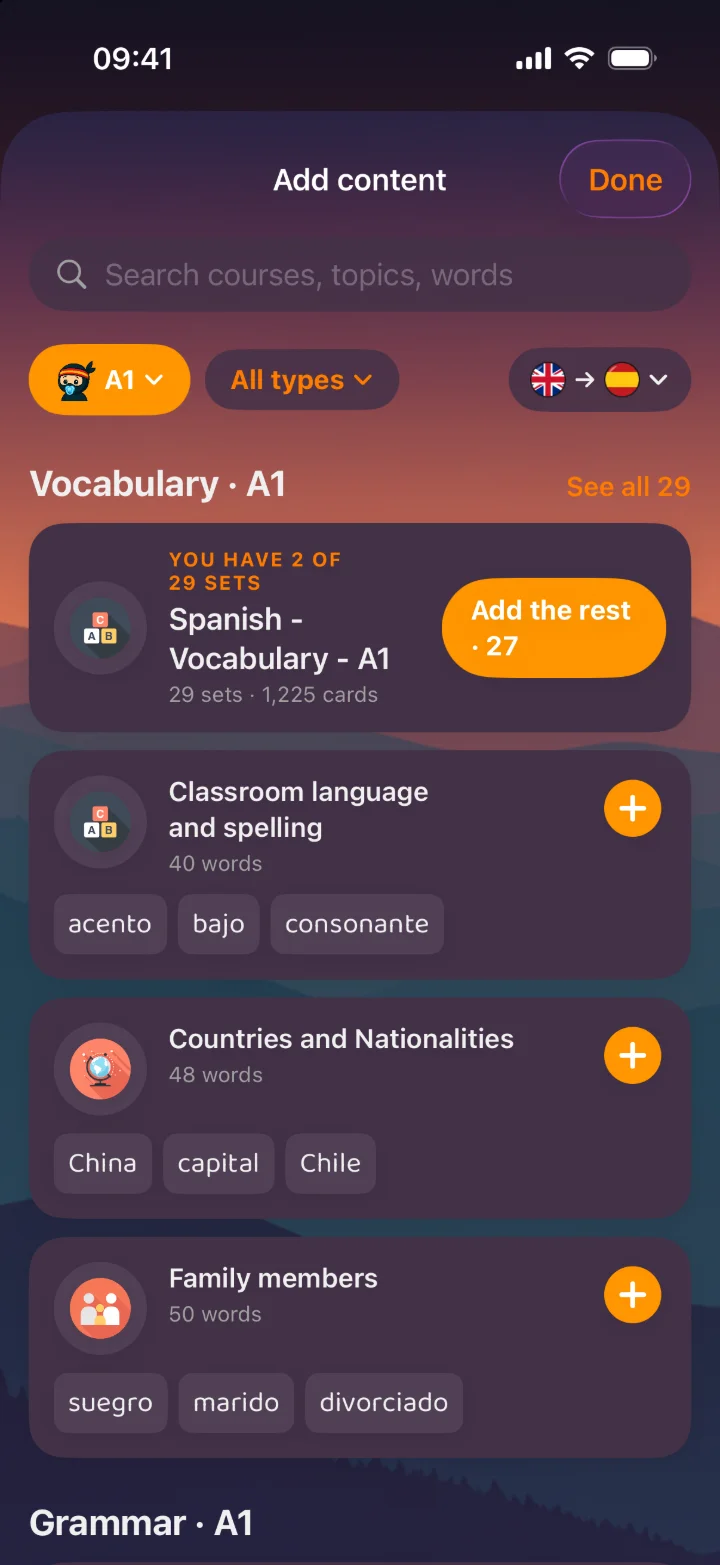
The ready-made courses used to arrive all at once during setup — every level, every set — and after that there was no way back to them. 2.4 replaces that with a library: tap +, choose Find or create a set, and every course for your language pair is there, sorted by level from Beginner to Advanced. Every one of them was reviewed by people — the words, the example sentences and the grammar.
Vocabulary and grammar sit in their own sections. Each card says what's inside before you add it — a few of its words, a grammar example with the gap marked — and what you already have is marked Added, so nothing lands twice.
How to use it
Pick your level at the top. The library remembers it, and your language pair, next time.
Search for a course, a topic or a single word — “kitchen” finds the set that teaches it.
Add a whole grammar path, or tap Choose lessons and take only the ones you need. The rest can follow any time.
Keep browsing while it downloads — the card fills up as it lands, then says Practise.
Browse by level, add by lesson
What you already have is marked, never added twice
Now free
No padlocks on the courses. Anywhere.
The free plan used to open the first five sets of each course and lock the rest. That limit is gone: every curated lesson, at every level, is free to add and free to practise. Pro still gets you more — more sets of your own, more freezes — but never the course itself.
Grammar is now organised in lessons. A long topic that was split into parts reads as one lesson card with its parts inside, and the next part to do is always the one marked up next — the mixed review at the end opens once the parts are done.
One lesson, its parts inside
Lesson 4 · Ser y estar3 parts
Part 1 · Who and what
Part 2 · Where and how
Part 3 · Changing states
Mixed review
New · Create your own sets
Say what you need. Get a lesson for it.
The old create form asked you to fill in a name, two languages, a level and up to three topics before it did anything. The new creator lives inside the library, already knows your pair and your level, and offers two ways in.
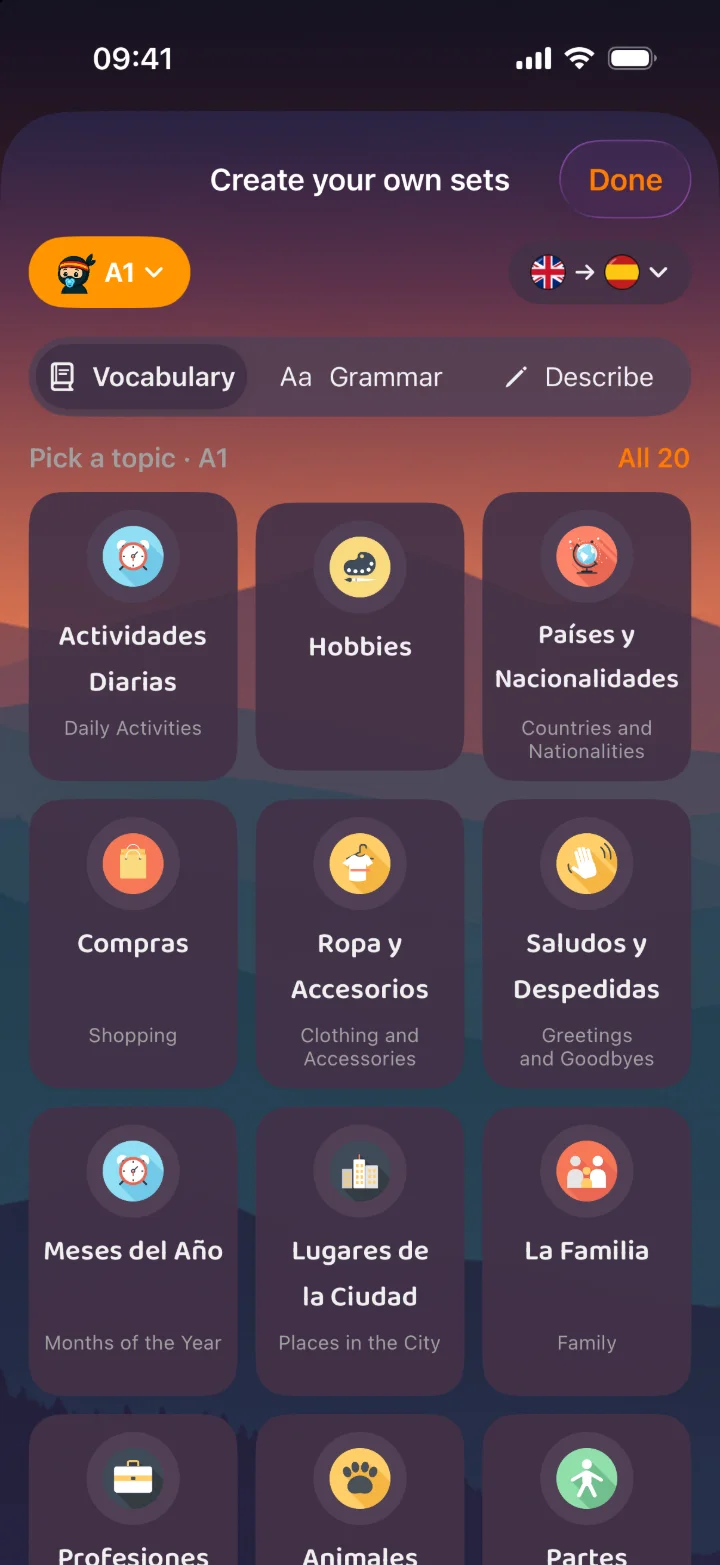
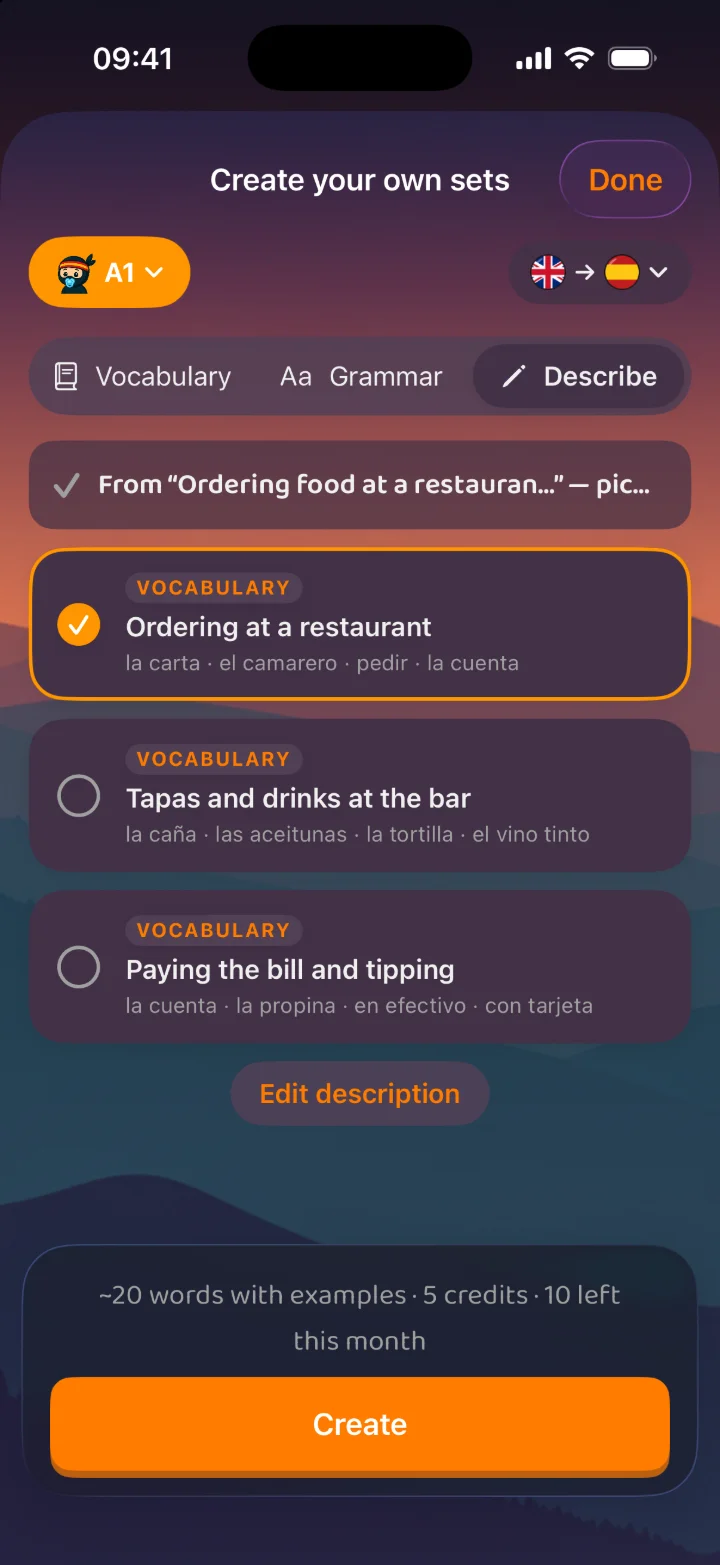
Pick a topic from a list written for your level — each one with its name in your own language — or switch to Describe and write it in a sentence, in any language. Palabrify reads it, decides whether you're asking for words or for grammar, and suggests sets to choose from. Name a grammar point (“the past tense, with travel stories”) and you get a grammar lesson whose examples are about travel; name a situation (“renting a flat”) and you get the vocabulary for it.
Pick a topic
Written for your level
Or describe it
In any language you like
How it works
Tap + → Find or create a set. If there's no ready-made course for your pair, the creator opens straight away; otherwise it's at the end of the library.
Pick a topic, or describe one and tap Suggest sets.
Tap Create. The price in credits is on the screen before you do.
Keep using the app. About half a minute later the set is on your dashboard — or in the folder you started from — with every exercise ready.
Vocabulary set
About 20 words, each with its own example sentence.
Grammar lesson
The rule, its parts, and a mixed review — like a curated lesson.
Every plan can create sets; it uses the monthly credits that come with it. If something goes wrong on our side, nothing is charged.
Your week, with one day frozen
M
T
W
T
F
S
S
Streak freezes
0 of 1 · Next in 26 d
New · Streak freezes
One bad day doesn't cost you the month.
A forty-day streak used to go back to zero because of one flight, one fever, one late night. Now you hold a streak freeze. Miss a day and it's spent for you, automatically — the streak carries on, and the day shows as frozen on your calendar, on the widget and, on iPhone, on the Lock Screen countdown.
A frozen day bridges the gap; it doesn't add to the count. A spent freeze comes back after 30 days. The free plan holds one, Pro holds three.
Practised late on another device, after the freeze had already been used? The freeze comes back to you once that session reaches us — you don't pay for a day you actually showed up.
Better · Type-In
The hardest exercise, without the friction.
Type-In asks you to write the whole word yourself, which is exactly why it's worth doing — and why every extra tap in it hurt. Three of them are gone.
Return checks your answer. No more closing the keyboard to reach the button.
Show answer when it just isn't coming. It counts as a miss — honestly — so the word comes back soon, instead of you typing nonsense to get past it.
Every right answer counts. When a card means “to go” and lists iść, jechać, writing either one is correct — not only the whole list.
to go → Polish
jechać
Accepted — iść would have been too.
Show answerCheck
Got it wrong? The panel now also shows the English meaning under the correct answer, when neither side of the card is English already.
The Inbox review bar
All dueTop 10Top 20
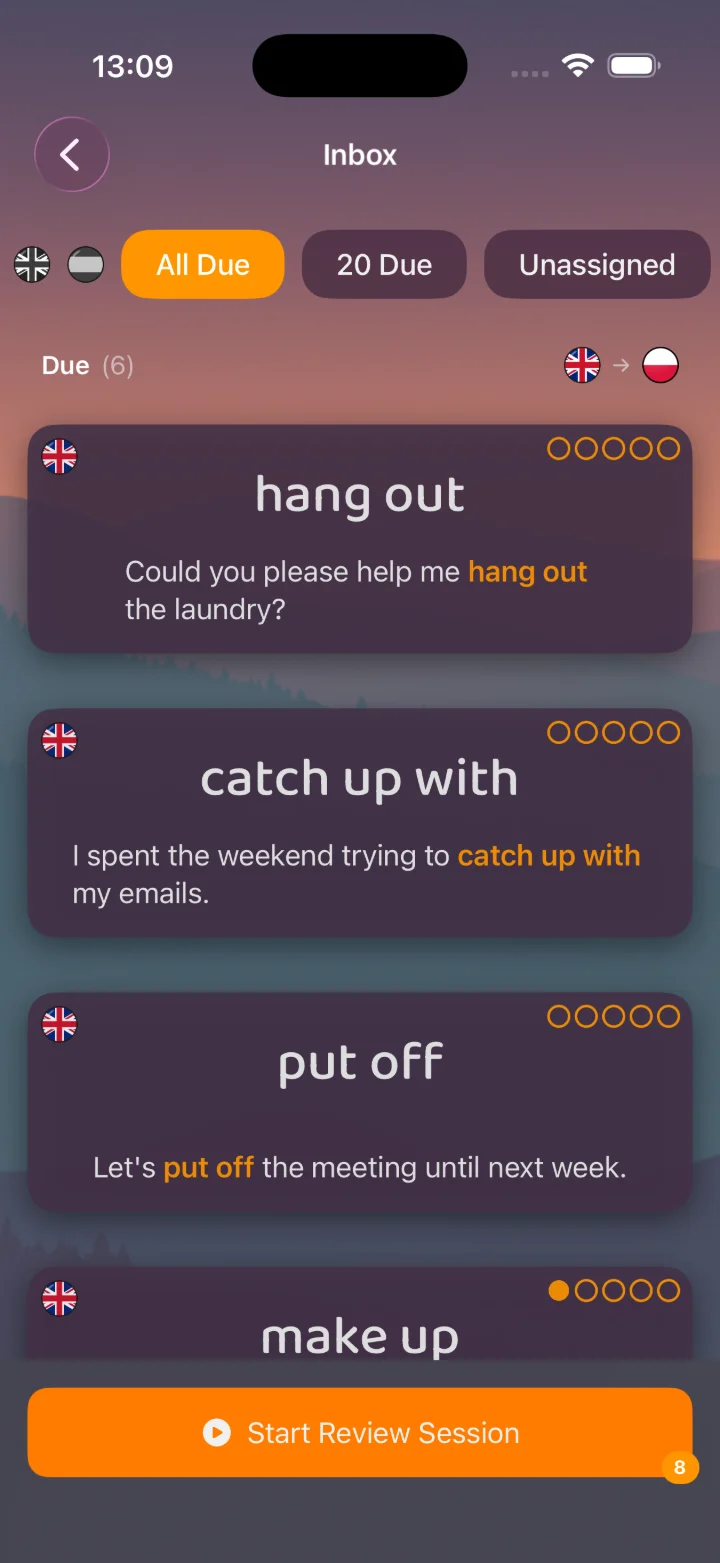
10 cards · about 17 exercises
Start Review Session
110 more due in other languages
Clearer · Inbox
Three numbers that finally agree.
The dashboard badge said 120, the filter said 10, the session ran 17 exercises — and none of them was wrong. They were counting different things. 2.4 says which.
The review bar reads “10 cards · about 17 exercises” — because a card you know both ways is asked both ways.
“10 Due” is now Top 10: the ten most urgent, not a promise of ten.
With a language filter on, a line says how many more are due in your other languages — tap it to see them all.
And also in 2.4
Smaller things that make the app feel better day to day.
A calmer start
One splash instead of a relay of loaders — the Palabrify wordmark glides straight into the dashboard title.
Buttons that stay put
On a set, in the Inbox and in the creator, the main action now sits on a bar pinned to the bottom of the screen, within reach of your thumb.
Sixteen new topic icons
Drawn for the curated vocabulary topics that used to share a generic one.
Fixes
Letter Fill on the right face
Whole words in Chinese and Japanese
Word Builder without punctuation tiles
Upgrade banner timing
Streak refresh in the background
Smoother menus and sheets
2.3.0
September 2026·
iOS
Android
Knowing a word and being able
to say it are two different things.
Until now a card had one schedule. You saw la ventana, you remembered “window”, the card moved on — and nothing ever checked whether you could go the other way and produce la ventana from “window”. Those are two different skills, and 2.3 finally schedules them as two. Around that sit a brand-new first run that shows you the app working instead of lecturing you about it, an account setup that asks one thing at a time, a grammar session you pick the length of, a summary that tells you what you actually got wrong, and a streak that lives on your Lock Screen.
Production is now measured, not assumed — a student's mastery reads as two numbers, not one
The recognition-only learner is now visible instead of looking finished
Your grammar sets no longer stop at a hidden batch of 20 — a student can work through all of one
A ten-minute lesson slot has a session that fits it, chosen by the student
A student joins your class during setup — the code is asked for on the way in, not hunted down in Social afterwards
Teachers holding a plan are no longer shown an upgrade they already own
New · First run
Show it working. Don't explain it.
The old first launch opened with six pages on the theory of spaced repetition — delivered to someone who had no account, owned no words, and had never seen the product do anything. One of those pages explained what an average ease of 2.5 meant, for a workspace that did not exist yet.
2.3 replaces it with three screens that simply show the thing happening. A word becomes a card and turns over to reveal its own example sentence. A Letter Fill board solves itself, with the sentence sitting above it. Five dots fill in while the interval stretches from one day out to a month.
Nothing was cut. All six original pages are still there — rebuilt in the app's own colours, with drawn icons in place of emoji and the explanations that make “2.5 avg ease” mean something. They just live in Settings → How it works now, where someone who wants the mechanism can go and find it.
Three screens, no lecture
1 · A word becomes a card
la ventana
Abre la ventana, por favor.
2 · An exercise solves itself
ve
The sentence stays above the board, so the word is always read in context.
3 · The interval stretches
1 day → 3 days → a week → a month
The branch comes first
On my own
I have a class key
1Your languages — or your class code
2Name and avatar, already filled in
3Straight to your first words, or to your class
Rebuilt · Account setup
One question at a time, and the right one first.
The old wizard asked three questions in a row — native language, learning language, then name and avatar — with nothing filled in, no route for a student, and an avatar that started as nothing at all. Joining a class wasn't part of it: you finished setup, then went looking in Social for the code your teacher gave you.
Setup now asks the question that changes everything else first: are you learning on your own, or joining a class? Each answer leads to only the screens it actually needs. The class code is entered on the way in. Your name and avatar arrive pre-filled, so the last step is a confirmation rather than a form.
The same flow now ships on iOS and Android, screen for screen.
Headline · Per-direction scheduling
One card, two schedules.
Every card now splits into the direction you're reading — the foreign word in front of you, the meaning to recall — and the direction you're producing: your own language in front of you, the foreign word to summon. Each side keeps its own review history, its own interval, its own row of bucket dots.
The practical effect is that the easy half stops carrying the hard half. Recognition usually runs weeks ahead of production, and under one schedule that gap was invisible: a card you could only recognise still looked mastered and still drifted out to a month. Now the producing side stays on the short intervals it actually needs while the recognising side moves on without it.
When a card comes back
A card is due when either direction is due — and a session only drills the direction that's actually waiting, so a ten-card dose stays ten exercises rather than quietly doubling. The two sides of the same word are spaced apart inside a session, so you never answer one straight after the other.
Nothing to switch on, and nothing lost: your existing progress becomes the recognising side, and the producing side starts fresh. A seventh How It Works page walks through it the first time you open the app.
One word, both sides
Reverse · recall the meaningin 21 days
la ventana → window
Forward · produce the worddue today
window → la ventana
Same card. The app calls them Reverse (word → meaning) and Forward (meaning → word). Here recall is four buckets in and three weeks out, while production is due today. Flip a card over and you'll see the other side's dots on its back face.
Forward vs Reverse
Reverse68%
Forward44%
Forward is 24 points behind — production needs work.
You can read these words. Saying them is where the next session should go.
Stats
The gap is the number worth having.
Your stats screens already had a Combined / Forward / Reverse filter, but a filter answers one direction at a time — you had to flip between them and hold two figures in your head to work out which was which.
So both screens now draw the two as a pair of bars with the difference written underneath in words. Both are measured against the same set of cards, so the bars are directly comparable, and the sentence says which skill is behind rather than leaving you to subtract.
Grammar
Decide how long you've got.
Tap Start on a grammar set of more than 20 cards and a chooser unfolds: Short, Medium or All. It asks every time and remembers nothing, because how long you have today has little to do with how long you had last Tuesday.
Each tile carries a time estimate, and it's yours rather than an average: the median pace of your last five grammar sessions. If you work slowly through sentences, the estimate says so.
Also gone
Curated grammar courses used to stop at a hidden batch of 20 cards with nothing on screen to say so. That cap is gone — All now means all of them.
Before you start
Short
10 cards
~5 min
Medium
25 cards
~12 min
All
48 cards
~23 min
A tile only appears when it's smaller than the set. Medium comes pre-selected.
Words to remember
Cierra la ventana, por favor.
Close the window, please.×2
No recuerdo su nombre.
I don't remember his name.×1
Session summary
What you got wrong, while it still matters.
A score tells you how it went; it doesn't tell you what to look at. So the end of a session now lists the ones you missed — the sentence, the word you were after highlighted inside it, the translation underneath, and how many times it caught you.
Grammar sessions got this list first. It now runs after vocabulary sessions too, which is where most people spend most of their time.
The card around it was rebuilt to hold it: a bigger cup, the numbers as three stacked pills, the whole thing scrollable rather than clipped — and a marimba run to open it instead of the old fanfare.
Memory hooks
For the word that keeps winning.
Miss a word once and that's just learning. Miss the same word twice in one session and something about it isn't sticking — so the “not quite” panel grows an extra row offering to build you a mnemonic for it.
You ask for it; it never happens on its own. Tap the row and the hook is written, shown in place, and kept on the card — so the next time that word comes round, it's already waiting behind the lightbulb.
Generating one spends one of your monthly tokens, the same as writing a hook from a card. The offer only appears when it would buy you something: a single vocabulary word, missed more than once, on a card that has no hook yet.
Not quite
The answer was
recordar
Create a memory hook
“Recordar — to re-record something in your mind.”
Got it!
On the Lock Screen
21:47
12
Last call!
2 h 13 min left today
Three widget sizes plus a countdown that appears on its own in the final hours — and disappears the moment you practise.
iOS only
A streak that reminds you itself.
The Home Screen widget has drawn this countdown for a while. The trouble is that you have to know it exists, go looking in the gallery and place it — and almost nobody does.
So 2.3 adds the streak to the Lock Screen in all three accessory sizes, and — in the hours that actually decide whether a streak survives — raises a live countdown that arrives without being asked for and leaves as soon as the day is safe.
It can now appear on an evening you never opened the app at all. Finish the session on another device and the banner comes down on this one.
And also in 2.3
Smaller things that were still worth doing.
Fixes
Fairer exercise mix
Correct answers keep their place
Hinted answers hold, not advance
Per-direction session mastery
Dark-mode card surface
Sign-out on a stalled connection
Localised language names
Flag artwork, not emoji
Grammar chooser overlay
Screen-reader labels
Dark-mode primary button
Whole-word crossword clues
Whole-word sentence highlight
Rate limit vs. spent quota
Immediate streak refresh
Teacher upgrade prompt
iPad profile sheet
Heatmap XP label
Builder-board letters on Check
2.2.0
September 2026·
iOS
Android
Web studio
Letters to drop into place, a code
that puts you in the class.
2.1 answered “what do I do today?”. 2.2 is about everything either side of that — getting into your teacher's class in the first place, and hearing about it when something new lands there. In between sits a sixth exercise that finally asks you to spell.
If you're learning
Letter Fill — a new exercise that asks you to spell, not to sort tiles
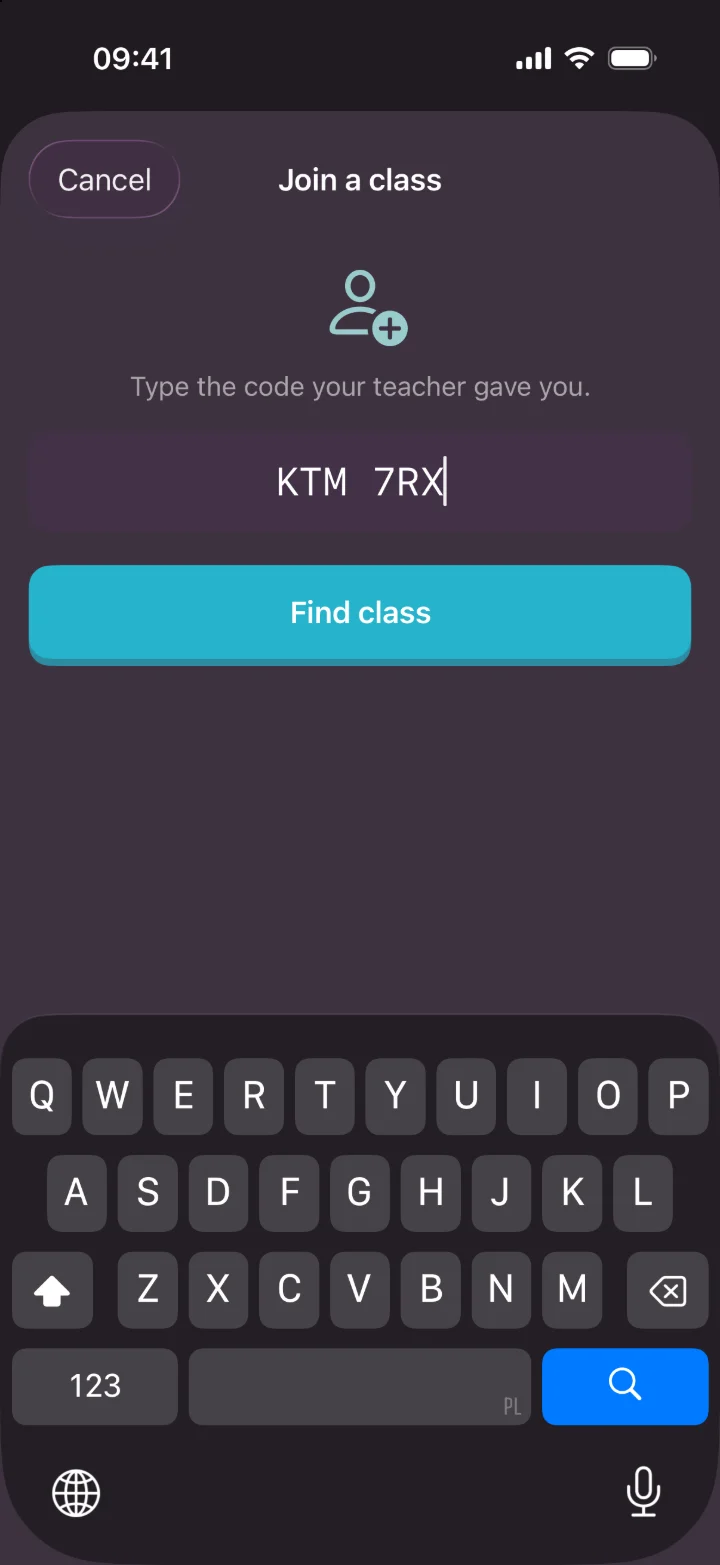
Join a class by typing the code your teacher gives you
Pause reviews on a set or a whole folder, then pick up where you stopped
Five free sets in every curated course, up from two
If you're teaching
One code on the whiteboard puts a whole class in — no email addresses collected
The nudge you send a class now reaches their lock screen, not just their inbox
A set you share, and a lesson you scheduled, announce themselves when they land
Letter Fill can be pinned in a set's session rules, like every other exercise
Students see more of your curated courses before they hit a paywall
New exercise · Letter Fill
Spelling, without the answer on screen.
The sentence is in the language you're learning. The word you're after stands in it as a row of slots — some letters already there, the rest blank — and a short tray holds what's missing plus a couple of decoys. Each tile goes into one particular slot, so where a letter belongs is part of the question.
What makes it different from Word Builder is what isn't there: the translation. It sits behind a hint you can buy. That's the whole exercise — recall the spelling from the sentence around it, and pay if you'd rather be told.
The number of blanks grows with the card. A word you met yesterday shows you most of itself; one you've seen seven times shows two letters and asks for the rest. Word Builder keeps the high-repetition end, where a full tray is the point.
How a student plays it
Start a session as usual. From about the third time you meet a word, Letter Fill leads — it comes before the other production exercises, not after them.
Read the sentence, then drop the tray letters into the blanks. There's no lining the word up left to right — a tile is either in the right slot or it isn't.
Stuck? Translation puts the native word in the bubble; Extra letter fills in the hardest slot for you. The cost is printed on the button.
Check. Clean, and the card jumps ahead. Lean on both hints and it comes back tomorrow — which is the honest outcome.
Some letters standing, the rest on you
The translation is behind a hint, not on screen
Translation−2
The native word. Tap again for the whole sentence, and once more for the memory hook.
Extra letter−2
Reveals the slot you were least likely to guess, and takes that tile out of the tray.
For teachers: Letter Fill is pinnable. If a set is about spelling, put it in that set's session rules and it's the exercise your class gets. Older app versions simply skip a rule they don't recognise, so pinning it never breaks a student who hasn't updated.
New · Join a class
One code on the whiteboard, and they're all in.
Getting a class onto Palabrify used to be a handshake: an account, a buddy request, an acceptance, an invite per set, another acceptance. Links were meant to shorten it, and mostly they did — but a link has to travel somewhere, it needs the app already installed, and one tapped before you've signed in is quietly lost. A code doesn't travel. It's on the board, everyone can read it, and a typo costs two seconds.
What a teacher writes on the board
KTM 7RX
Short enough to read out across a room. Codes expire, and a run of wrong guesses is throttled rather than left open to guessing.
How a teacher hands it out
Open the class in the web studio and generate its code.
Write it on the board, or just say it. That's the whole distribution step.
Students join themselves. You collect no email addresses and chase no acceptances.
Anyone who joins late still gets everything the class already has — not only what you share from then on.
How a student uses it
Tap Join a class and type the code.
Check it's the right one before you commit: the class name, who teaches it, how many students and how many sets.
Tap Join. Every set shared with that class is on your dashboard.
Mistyped it? It says so plainly and you try again. Already a member? It says that too.
The same six symbols, typed once
One field, no sign-up detour — and the class is named back to you before you commit.
Typed, not tapped
No email addresses collected
Preview before you join
Expiring, rate-limited codes
New · Practice reminders
Palabrify can reach your phone — when a person did something.
Until now the app never sent anything to your lock screen. Four things can now: your teacher shares a set, a lesson they scheduled goes live, you're invited to a class, or they nudge you to practise. Every one of them comes from a person doing something, not from a timer running out.
Anything your phone can already work out for itself — your streak, today's reviews — stays with your phone's own reminders, on the schedule you set. We don't nudge you twice about the same thing from two directions.
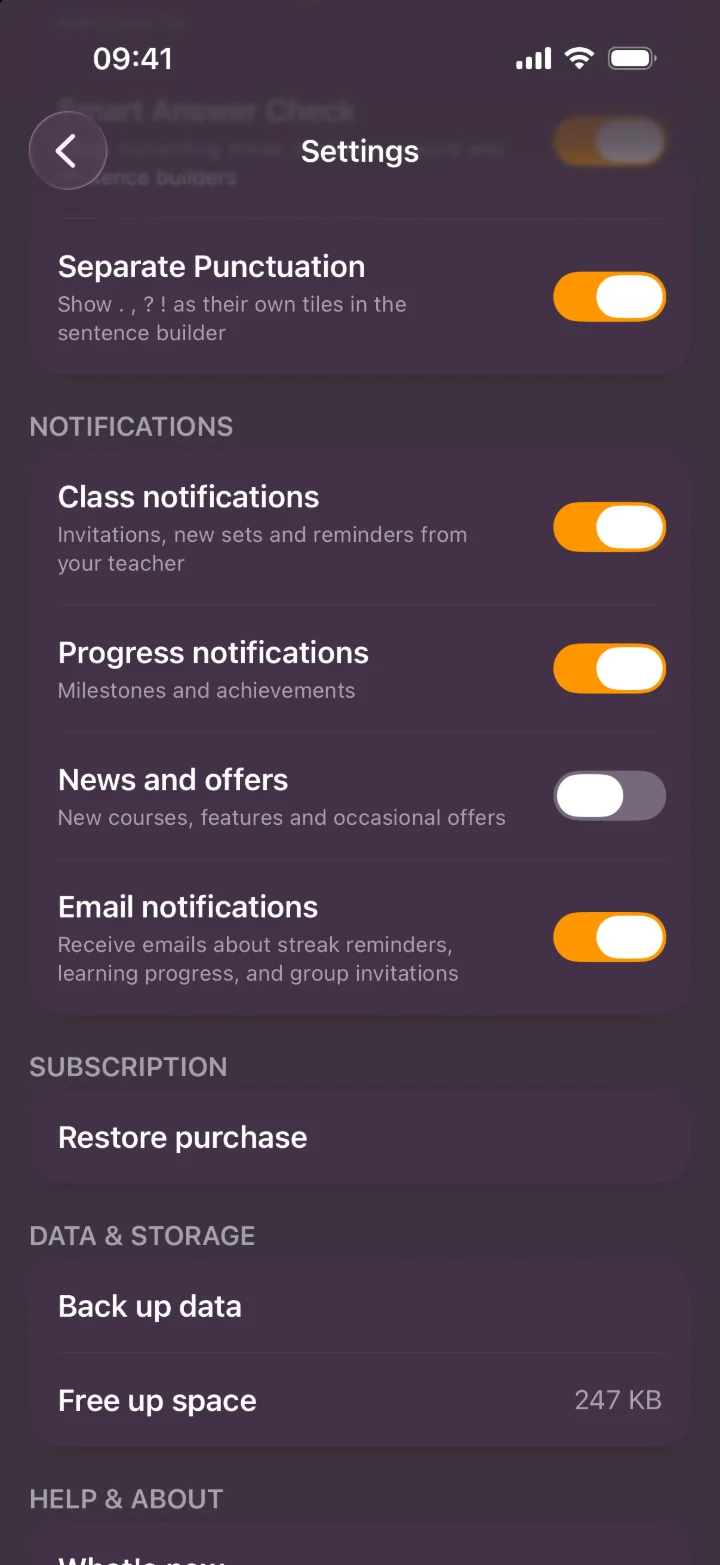
Class notifications — invitations, new sets and reminders from your teacher. On, until you say otherwise.
Progress notifications — milestones and achievements. Also on, also yours to turn off.
News and offers — new courses and features. Off unless you switch it on, and it stays off if you never do.
How to set it up
Palabrify asks for permission when there's finally a reason to — not with a pop-up on the day you install it.
Open Settings → Notifications. The three above sit there together, with the email switch you already had, each under a line saying exactly what it covers.
Turn one off and nothing disappears from the app. It just stops lighting your screen.
Nothing arrives in the middle of the night, and there's a daily cap — a busy class can't turn into a busy lock screen.
What they look like
New set from your teacher
Marta shared “Animals · Step 4” with you
New lesson available
“La casa” is ready to practise
A nudge from your teacher
Marta reminds you to practise Animals
Class invitation
Marta invited you to join 7B English
Illustration — the wording comes from the app, in your language.
Every choice in one place
News and offers is the one that starts off. Settings is grouped into named sections now, so the switch you want is where you would look for it.
For teachers: the reminder you send a class from the web studio now lands on phones as well as in inboxes, and you're told when a student accepts an invitation. One reminder per student per class per day — the cap is on you as much as for them.
New · Pause reviews
Put a set down without losing it.
A unit you've finished, a course you're not taking this term, two weeks away from it all — and the same words keep arriving in your daily reviews. The only ways out were to archive the set, which takes it off your dashboard, or delete it, which takes it away for good.
There's a third now. Pause a set and its words stop feeding your Inbox, your due count and today's Learn and Review lines. Everything else stays exactly as it was: the set is still on your dashboard, every card keeps its progress, and resuming picks up from the day you stopped rather than starting you over.
How to use it
Press and hold a set on the dashboard to open its menu.
Choose Pause reviews. The set stays where it is; its words go quiet.
Doing the same on a folder pauses everything inside it — a whole course, in one tap.
Choose Resume reviews whenever you want it back. Nothing was reset while it was away.
Press and hold, on any tile
Sets and folders both
Still there
A paused set stays on the dashboard and stays open to practise on purpose. It just stops volunteering.
Nothing lost
Every card's schedule is kept. Resume and you continue, rather than beginning again.
And also in 2.2
Smaller things that were still worth doing.
Five free sets, not two
Every curated course now opens its first five sets to everyone. Far enough in to know whether a course suits you before anything asks you to pay.
Onboarding rebuilt
Your languages come first, every first-run screen is legible against its background, and closing the app halfway through drops you back where you were instead of at the start.
Settings you can find things in
One long list became six named sections — Learning, Notifications, Subscription, Data & storage, Help & about, Account — with every notification choice in one of them.
A steadier ninja
Pala stands still and gestures while the next exercise slides in, instead of being carried off with the old one. Extend a streak and she hops twice.
The Inbox tile answers
Add a word and you watch it get pulled into the tile, so it's obvious where it went — and the badge now sits on the icon rather than beside it.
Fixes
The meaning picker settles instead of bouncing, no rating prompt on your first day, the “incorrect” sound no longer doubles, and a finished Letter Fill board stops colouring the next one green.
2.1.0
September 2026·
iOS
Android
Web studio
A plan for today, passages you can
listen to, and a ninja who reacts.
2.1 is about the two moments that decide whether a learner comes back tomorrow: knowing what to do when they open the app, and having something worth doing when they get there. Teachers get a new exercise to author and a voice for every reading passage.
If you're learning
A Today card that tells you what to do and when you're finished
Give any reading passage a narration — synthesized once, replayed free forever
Author a Crossword from your own words, or from a topic
Your course order now drives what the app tells students to do today
Scheduled sets now show their release date on the invite
New · Today
One card that answers “what do I do today?”
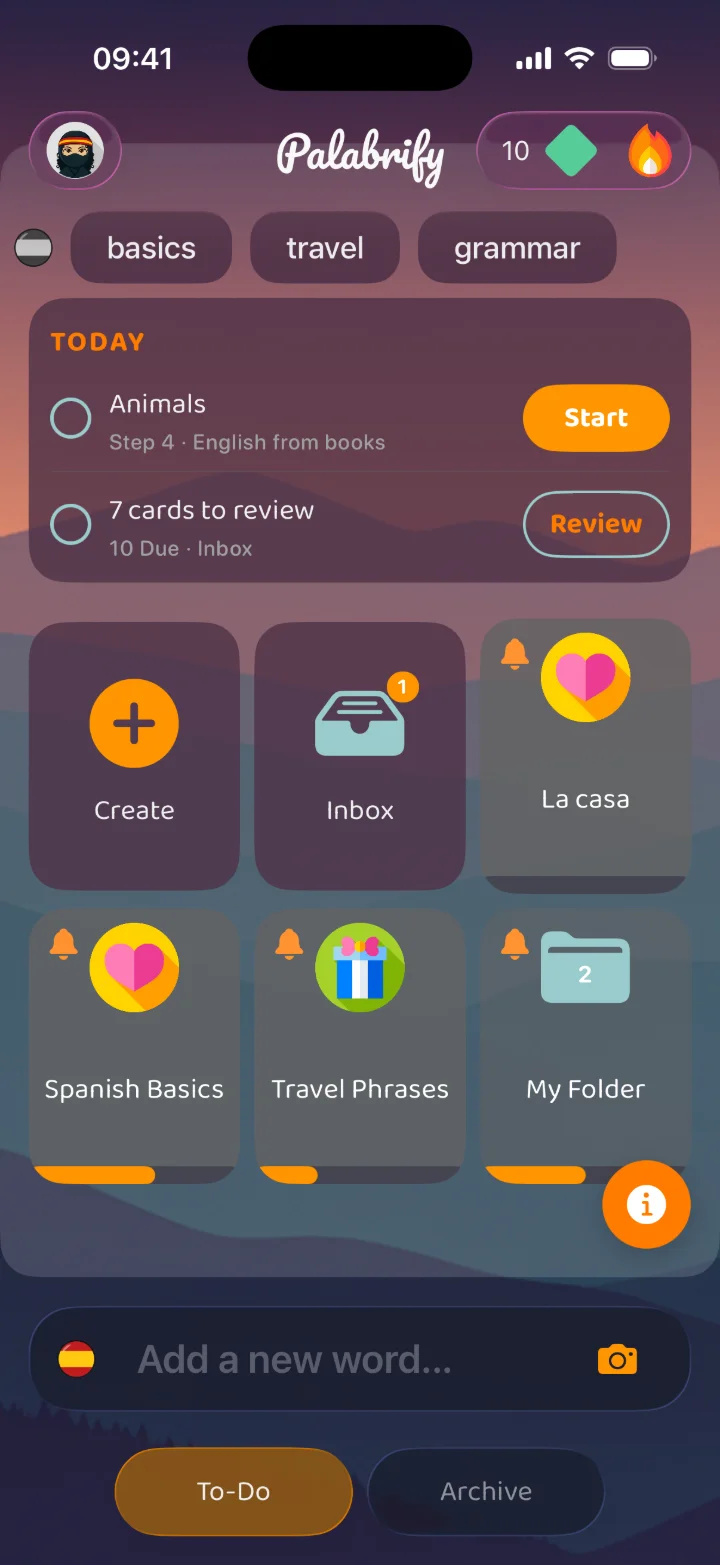
The dashboard used to show a learner everything they own and nothing about what to do with it. Now the first card above the folders holds exactly two lines — and a finish line.
Learn — the next step of the course you're working through, named: “Animals · Step 4 · English from books”. One Start and you're in it.
Review — how many cards are waiting for you right now. One Review and you're straight into them.
Done for today — tick both lines and the card collapses beside the streak flame. Nothing locks: “Practice more” is still there if you want another round.
How a student uses it
Open the app. The Today card sits at the top of the dashboard, above every folder.
Tap Start to play the step your course is actually up to — no hunting through folders for it.
Tap Review to clear the cards that are due today.
Both circles ticked? You're done. Close the app guilt-free — the streak is safe.
Two lines, one finish line
Start the step, clear the reviews
A count you can trust
Only what's really due today
For teachers: the Learn line reads your course order. Whichever step a student has unlocked in your sequential folder is the step the card names, so “do today's lesson” needs no reminder from you. Sets you've scheduled for a later date are never named before they're released.
It works offline, too — on a train or a plane, the card still knows what's left to do today.
New · Listening
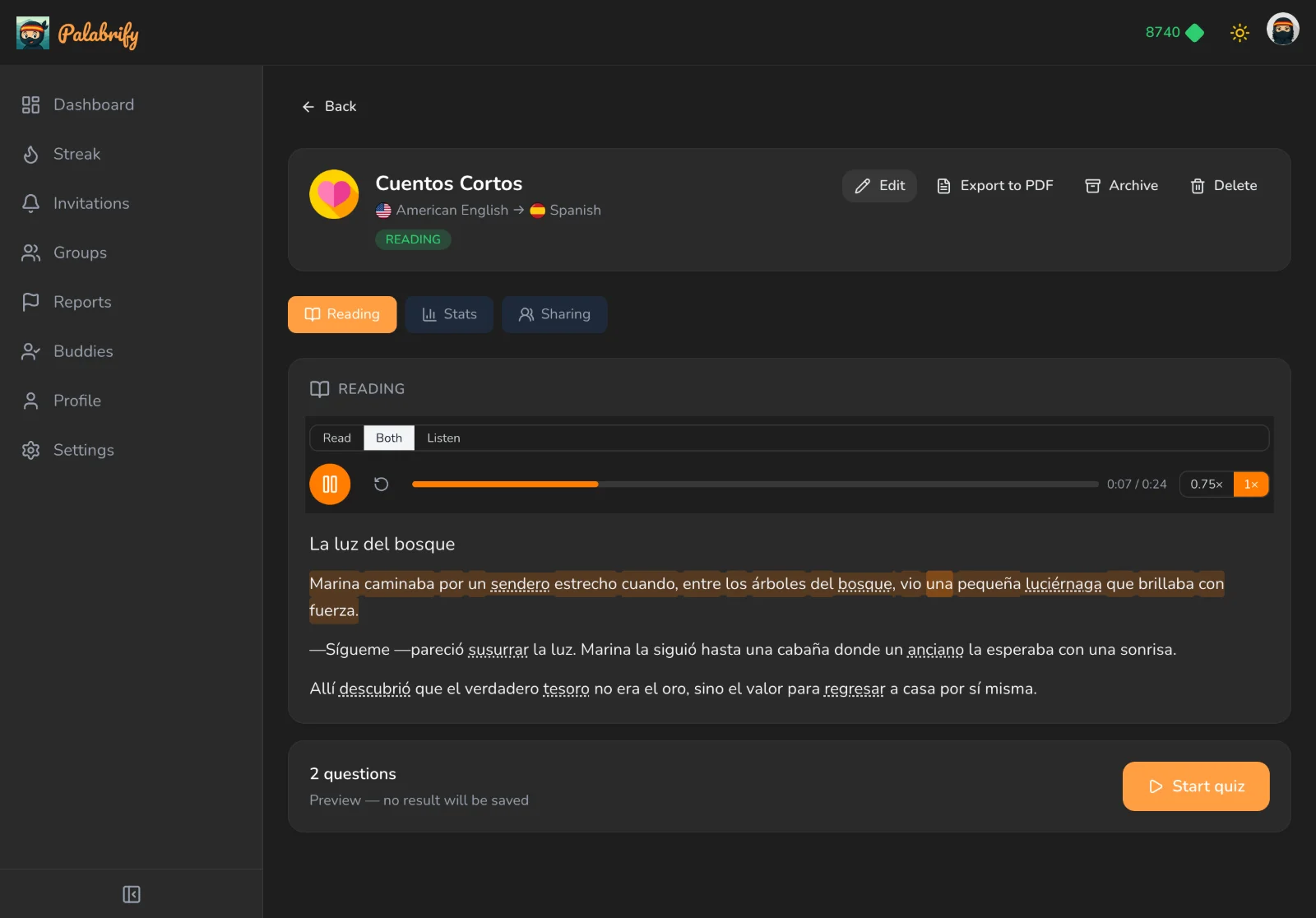
Your reading passages can be heard now.
Reading sets used to be silent. A teacher now generates a natural narration once on the web, and every student it's published to can play it as often as they like — for free, forever. The voice reads, the sentence is banded, and the word being spoken lights up underneath it.
Read
The text alone, quiet, every key word still tappable. No player, nothing to press.
Listen
Eyes off the screen. Just the voice and the ninja mouthing along — for the bus, the walk, the washing-up.
Both
The voice reading while the words light up in step with it — the mode that turns listening practice into spelling practice.
How a teacher adds it
Open your reading set on the web and go to the Reading tab.
Generate the narration. You pay for it once — not per student, and not per replay.
Preview it right there before publishing: the sentence bands, the spoken word lights, both stay in step with the voice.
Publish. It lands on your class's phones, and downloads once so every play after that is instant.
Narration is available for the languages where we have a voice with the right accent. We won't hand you a near-enough one — in a pronunciation app, the wrong accent is worse than silence.
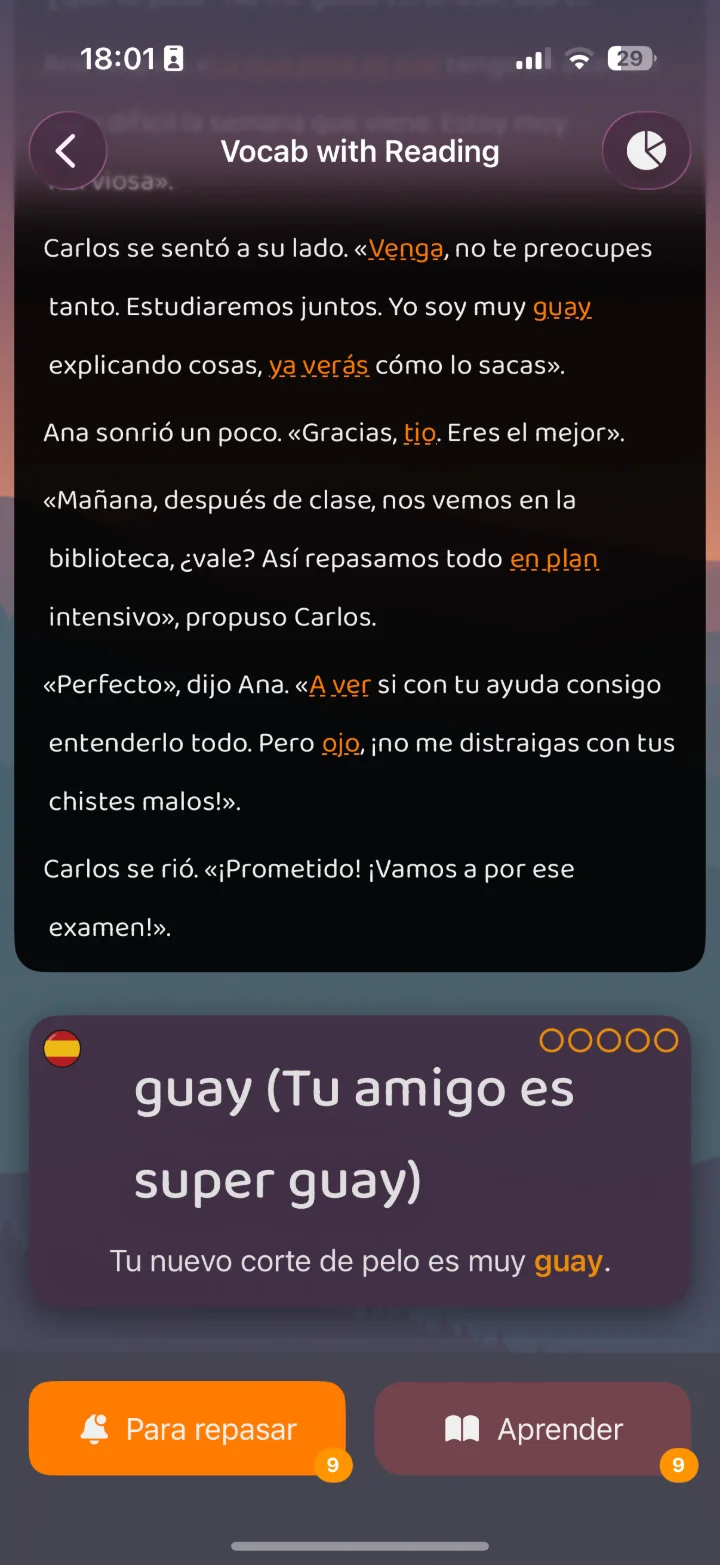
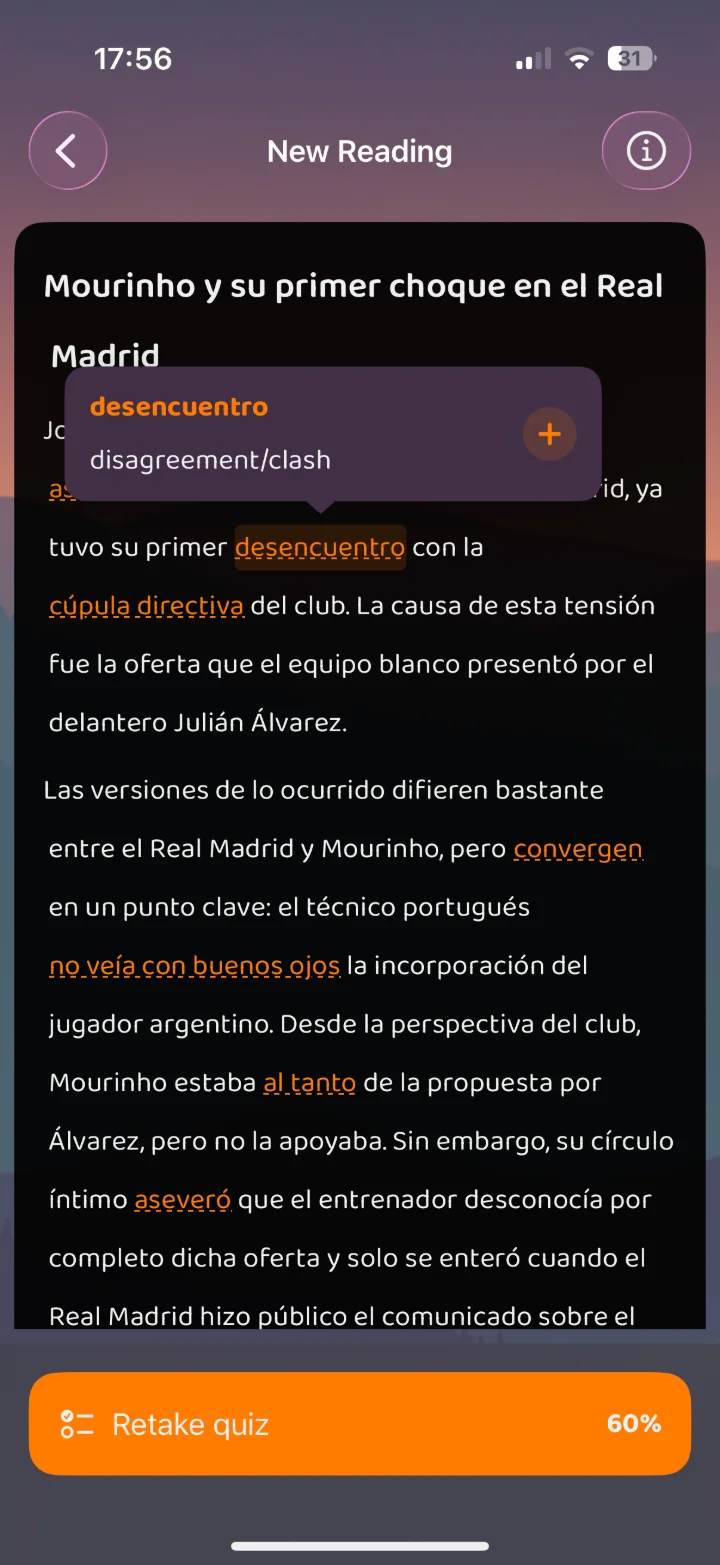
Tap a word
Hear it, and see what it means
Then prove it
Questions written from the text
How a student uses it
Open a reading set and pick Read, Listen or Both at the top. The controls stay put while you scroll, so you can change your mind halfway through.
Too fast? Drop to 0.75×. Heard it twice? Push to 1.5×, or tap restart.
Tap any word to hear just that word — in the same voice that's reading the story, not a robotic one.
Replay it as many times as you like. Playback never costs anything.
Read · Listen · Both
Word-by-word highlighting
0.75× · 1× · 1.5×
Free to replay, forever
Cached after the first play
New exercise · Crossword
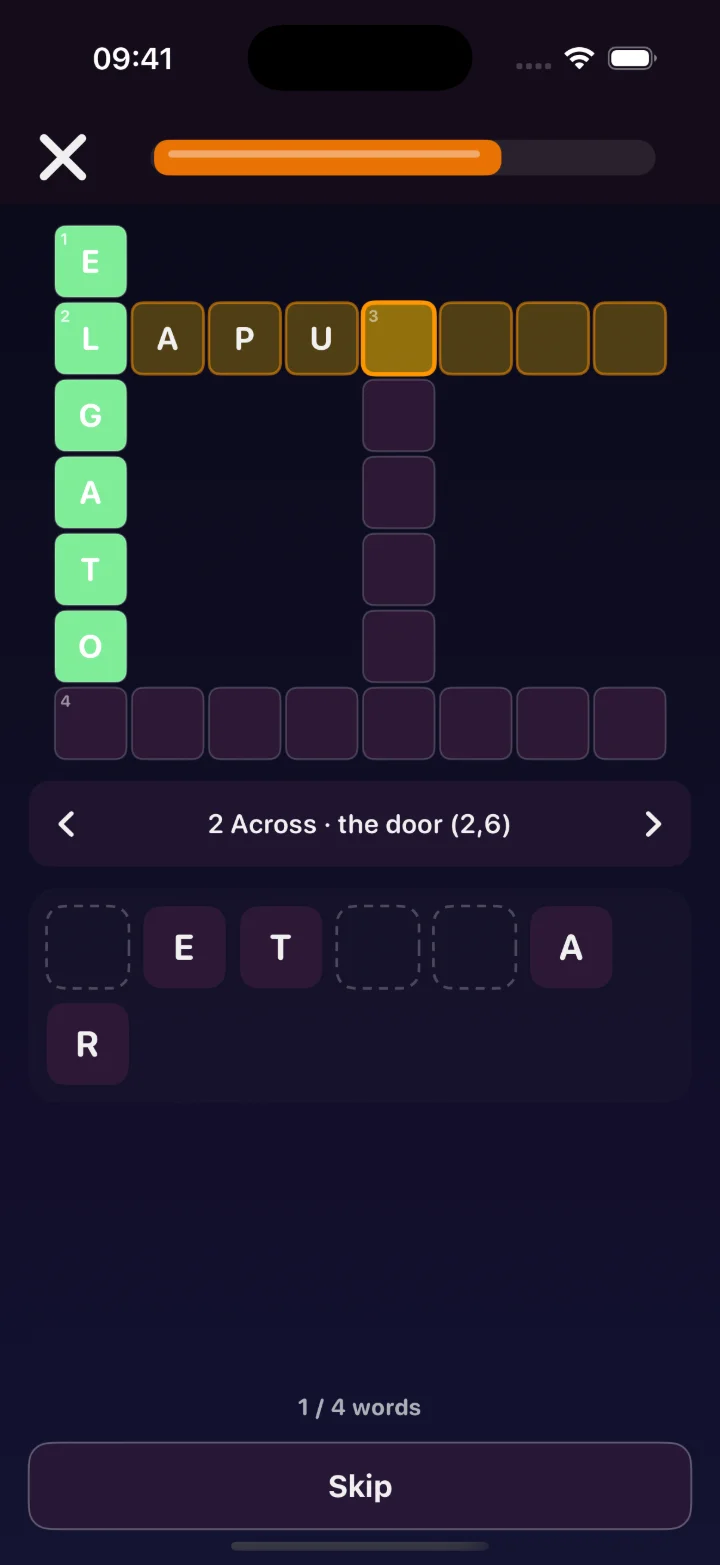
Words that lock into each other.
Not a generic puzzle from a word list somebody else wrote — a grid built from the exact words a teacher picked for that set. Getting one word right hands you a letter in two others, which is the point: recall stops being one card at a time.
How a student solves it
Tap any cell to select its word. Tap the same cell again to flip between Across and Down.
Read the clue banner — “2 Across · the door (2,6)”: the meaning, plus how the letters are grouped. Tap the banner for the full clue list.
Build the answer from the letter bank underneath. It only offers the letters that word still needs, and a used tile leaves its gap behind so nothing jumps around.
Finish a word and it's checked instantly: right locks green and shows the true spelling with its accents; wrong sends the letters back to the bank. No lives — retry as often as you like.
How a teacher builds one
In the web studio, create a Crossword set from the Vocabulary group.
Choose the words: My words from your own set, or From a topic and approve the suggested list.
Watch the numbered grid build live as you pick. Don't like the shape? Hit Shuffle layout until you do.
Pick the clue style — Translations (meaning plus a letter-count hint) or Gap-fill sentences (your example sentence with the answer blanked).
Publish. If a word won't fit the grid, we tell you — rather than quietly leaving it out of the puzzle.
Four to ten words per grid, and up to five grids in a set. Six to eight words of middling length pack the best. Everyone in your class gets the same puzzle, whatever they're learning on.
One right word helps two others
The banner names the clue and the shape; the bank holds only the letters that word still needs.
A board you build, not colour in
The cable shows which two words you just claimed belong together.
Redesigned · Word Matching
Link each pair with a cable. Keep the streak.
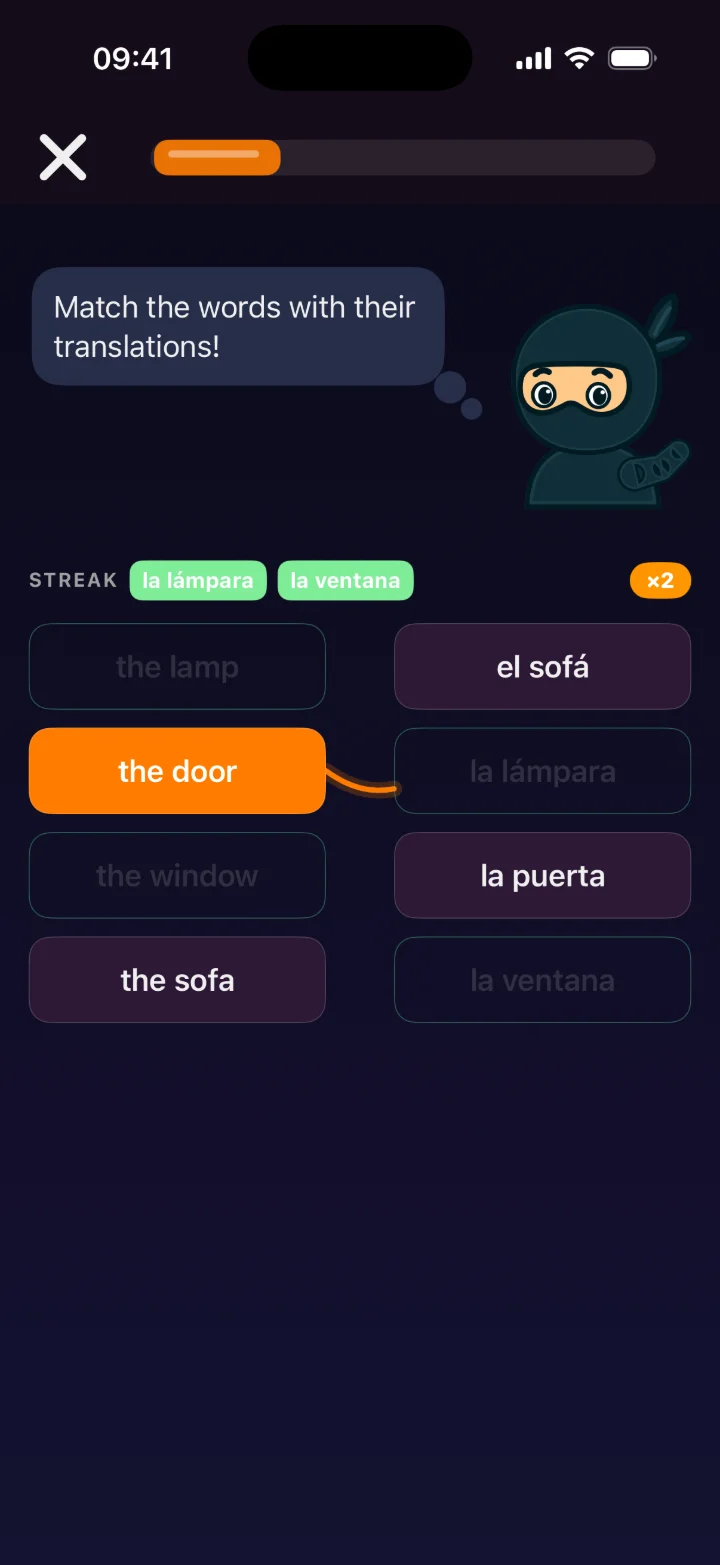
A tile turning green said only that something happened — never what. Ten green rectangles was a finished board with no sense of having got anywhere.
Pick a word and a slack cable drops into the channel between the columns. The right pair pulls it taut and runs a light down it. A wrong one over-stretches until it snaps into two recoiling stubs.
Collect the streak. Each solved pair pops out of the link as a chip and flies up into a Streak strip with a ×N badge. One miss empties it — a run you can lose is a reason to be careful with the next tap.
Nothing jumps around. Solved tiles stay exactly where they were and fade to a thin outline, so the choices you have left never move under your finger.
Faster than it looks. You can start the next pair while the chip is still flying, so eight pairs feel like one quick round. And every cable stays faintly drawn: a finished board looks like a circuit you built.
New mascot
Meet Pala.
She sits beside every exercise and reacts to what you do — and she wears the headband of whatever language you're learning.
Nailed it
You got it right
Ouch
That one was wrong
Thinking
Gap fill & crossword
Still there?
You left her waiting
Over here
Word matching
Calm
Flashcards
Leave her twenty seconds without an answer and she nods off. Touch the screen and she's back.
And also in 2.1
Smaller things that were still worth doing.
12 new avatars
Thirty-six figures in all, from kid to elder — every one wearing the headband of the language you're studying.
A livelier streak
Hit a streak and Pala leaps beside the flame while the counter climbs.
Free up space
Settings tells you how much space downloaded pictures and audio are using, and clears them if you ask. Not one of your words is touched.
Release dates on invites
A shared set that's scheduled for later now says when it opens, right on the invitation.
Better on iPad
Quiz games are centred properly and the crossword scales to the screen instead of hugging one corner.
Fixes
A more accurate review count on the Inbox tile, reviews now counting towards the right set, and narration showing up after an update without signing out.
Get 2.2 on your phone
Free to download, no ads. Teachers: the web studio is where you build the courses your class will open — and where you generate the code that puts them all in it.